Migrating WordPress is not the same as copying files from the server via FTP from one location to another. Although that step is required, at least for some of the files.
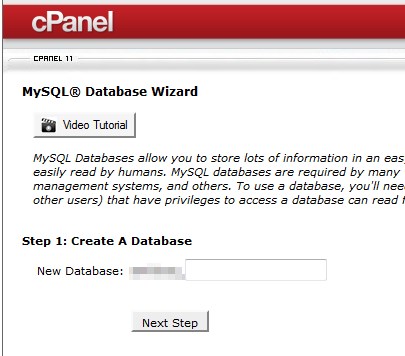
WordPress page, post, custom post and plugin settings are stored in a database, typically MySQL. You must find out what that database is. This doesn't necessarily require you to have access to cpanel. But you must have access to the WordPress site as an administrator, and very likely having FTP access.
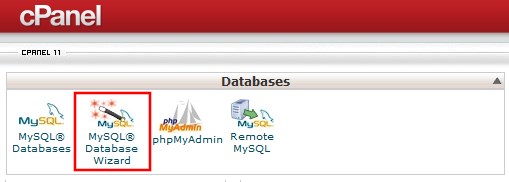
To migrate manually, You'll need FTP access, Cpanel access and PhpMyAdmin access.
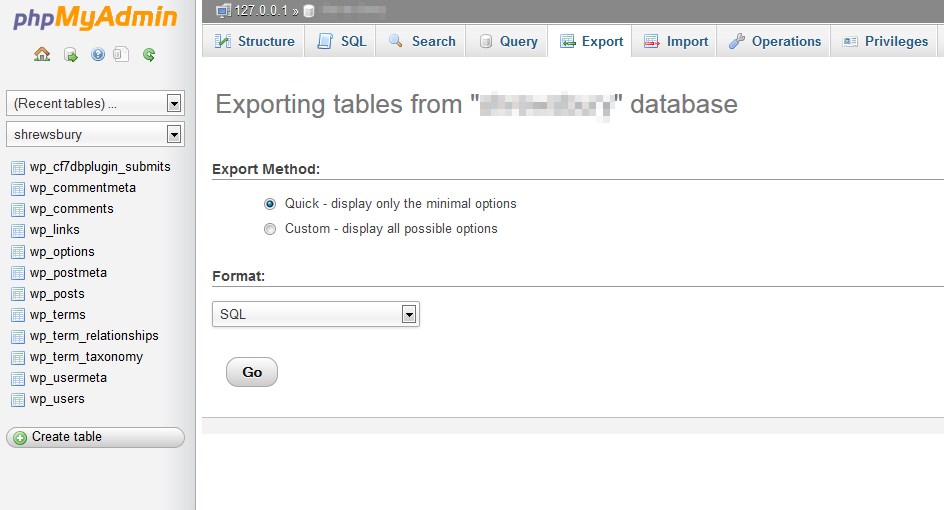
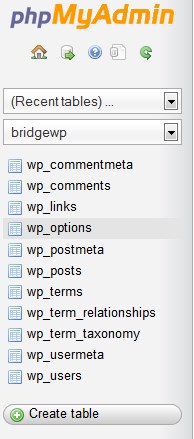
Once logged into phpMyAdmin, you can export the WordPress database to an SQL file.
Rather than mess with phpMyAdmin, the database, you can also get a backup of the database by using plugins. Two free plugins in particular work fine. One is WP DB Backup (popular but aging), a second is WP DB Manager, and the other is Better WP Security (a good security plugin to be using anyway)
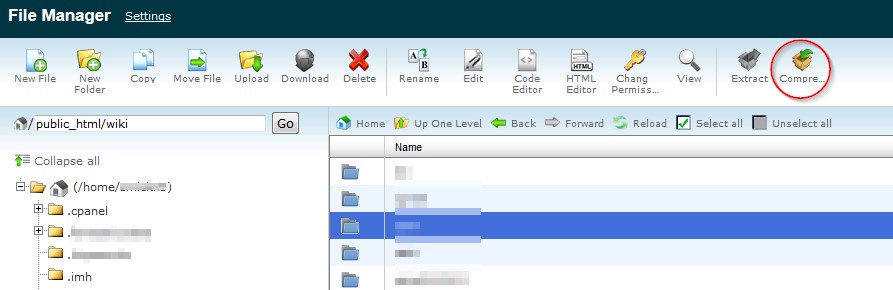
If you backed up your entire WordPress directory previously via cpanel or FTP, it's time to upload your backup to the new FTP location. If you just backed up the essential files, wp-config.php and the wp-content folders, make sure and download the WordPress software from WordPress.org and copy to your new server. Then copy your wp-config.php file and wp-content folder to the new install in ftp. Be sure to edit wp-config.php and ensure those database credentials are correct.
If you were running wordpress on a subfolder or subdomain, you now have to make sure the database has the correct path so WordPress and it's themes and admin screen works.
Note that if your domain name changed, the image paths and other link paths within the site could still easily be broken. So you want to find out what the old path is and you can do a global find > replace in phpmyadmin to correct these paths.
Note, you need to change where it says oldurl and newurl to whatever it was and is. So if the old path was http://development.example.com you would use that and use http://example.com
if you don't feel comfortable with this step, you probably haven't done a lot of find > replace commands in text editors. This step is best left to people with a little experience. Remember, if you make a mistake, you can always delete all the tables on your new database and reimport from the sql file you have backed up.
Once the paths have been updated, your site should be working correctly. Things that might be an issue:
A good free plugin to migrate a WordPress site is called Duplicator. You install it on the old / existing site and perform the backup and then copy the backup to the new site. If you follow the steps, it takes care of any path changes, by letting you type in that content.
Another plugin to use is a commercial for-pay plugin called BackupBuddy. It also will backup your site and you can download their BackupBuddy migration file and run it as a wizard on the new site. It will automatically unip the backup zip and import the database information to the new databaes you create.
Both of these plugins are simple to use and have their own instructions.